Your first working remote
Connect Tactra to Home Assistant, try a control, and save the devices in your room as a Media System. Start on iPhone, iPad, or Mac. For Apple Watch, follow the paired-iPhone setup guide.
1. Check the connection and the device
Open your Home Assistant address in a browser on the same Apple device. Confirm you can sign in and control the speaker, TV, or receiver you want to use. Try one specific action, such as changing volume or pausing playback.
If that action fails in Home Assistant, fix the integration or device connection first. Check compatibility for the difference between media controls and TV navigation.
2. Sign in from Tactra
Open Tactra and select your discovered Home Assistant server, or enter the address you use in a browser. Allow local network access when connecting to a server on your home network. Continue to the Home Assistant sign-in page and use your Home Assistant account.
Home Assistant can show https://tactra.dev as the app identity. The server you entered is still the server being controlled. After sign-in, return to Tactra and wait for your devices to appear.
Use Advanced setup → Access token if you deliberately use a long-lived access token instead of app sign-in. Keep tokens private; support never needs them.
3. Try the audio control
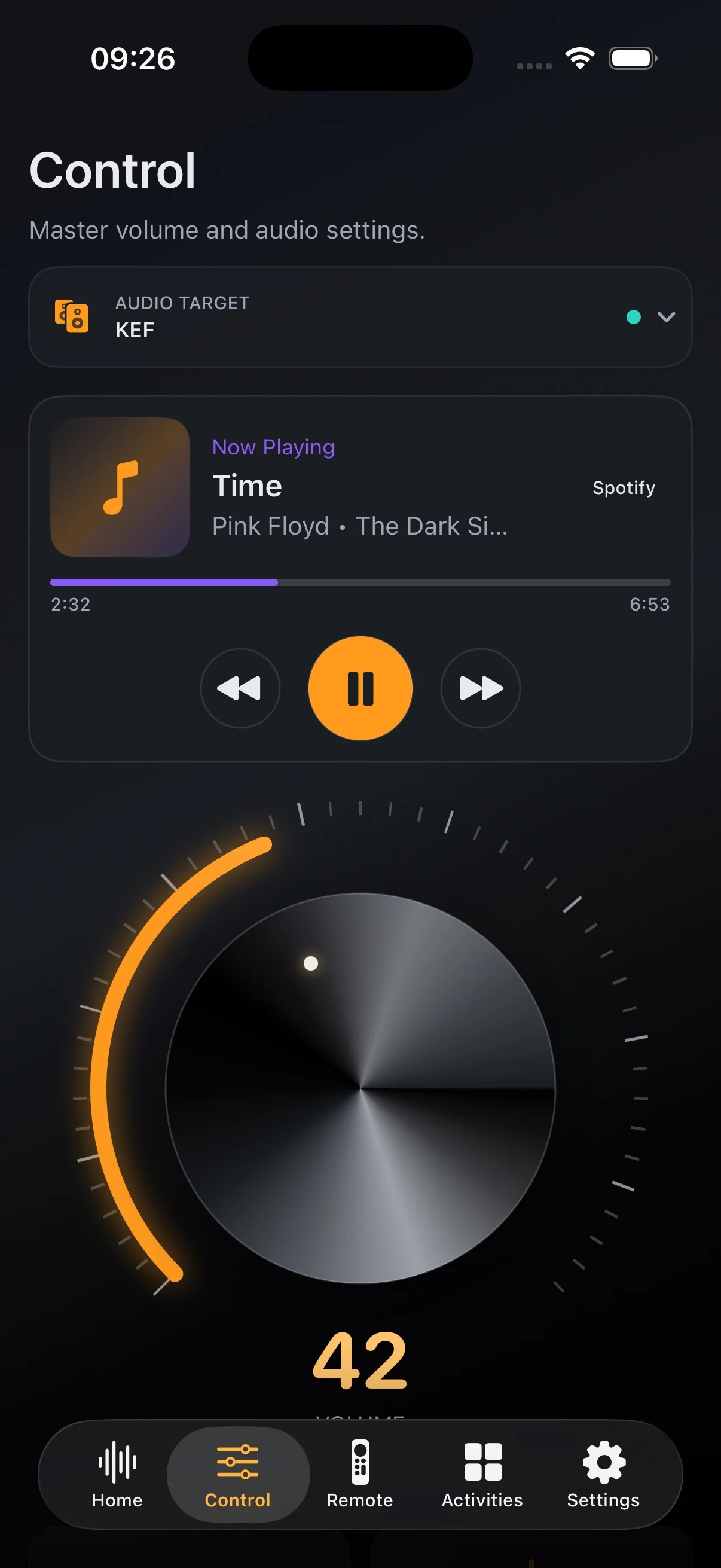
Open Control, choose the speaker or receiver under Audio Target, and make a small volume adjustment. Check that the intended device changes volume. The rotary control depends on absolute-volume support; a device with fewer capabilities has fewer controls.
4. Save the room as a Media System
Open Settings → Media Systems → Add System. Give the setup a name you recognize. Assign the screen, the device receiving remote navigation, the audio device, and the playback device. A single device can fill several roles.
Save the setup, select it, and test navigation, volume, and playback separately. If Apple TV handles navigation while a receiver produces the sound, use the TV and receiver walkthrough.
If something does not respond
- No server found: enter its address manually and check local network permission. Discovery and reachability are separate checks.
- No devices appear: confirm the correct Home Assistant instance is selected and that its media entities are available.
- The wrong device reacts: check the role selectors and any custom Remote control mappings.
- A control is missing: test the same action in Home Assistant and check that the device exposes that capability.
For a problem you cannot isolate, use the support checklist.